My FujiFilm GFX has dead pixels - does my camera need a service?


What is a HOT pixel?
Photographers often mistake red, white or green pixels appearing in their images as dead pixels - oh no my camera is broken!
Well, the good news is that these are a normal part what a sensor in a camera can reproduce under certain circumstances. These pixels are called stuck or HOT PIXELS.
All image sensors used in digital cameras, regardless of make, model, manufacture or intended application, will have a number of defective pixels - when you are dealing with millions of pixels, there are no perfect sensors that have no defective pixels (except those supplied to NASA who have the big bucks$). However, this is not a problem, these errors are mapped and accounted for when the camera is manufactured. Special algorithms then take care of replacing the invalid content of the defective pixels so the image appears as though the sensor is perfect.
Depending on the usage of your camera you may never see a hot pixel, and others will see them often.
When do hot pixels occur?
Hot pixels can occur in different circumstances, but the most common times is when the camera is very warm or hot due to the environment, or just because the sensor has been working hard (fast shooting, lots of use of Live View, or long exposures)
When exposing an image at longer exposure times, from around a second and longer, a varying number of pixels may act differently from those around it and display much larger values than the average pixels.
Why do hot pixels occur?
The number of hot pixels is closely related to the length of the exposures and the temperature of the sensor.
It happens that a sensor, after a period of time, may start showing some more stubborn or seemingly permanent hot pixels, even in images shot at short exposure times.
If you mainly shoot in bright daylight you may never notice these defective pixels. However, if you have a really dark area in your image, it suddenly becomes quite easy to spot such pixels.

Fix Hot Pixels on existing images with Capture One
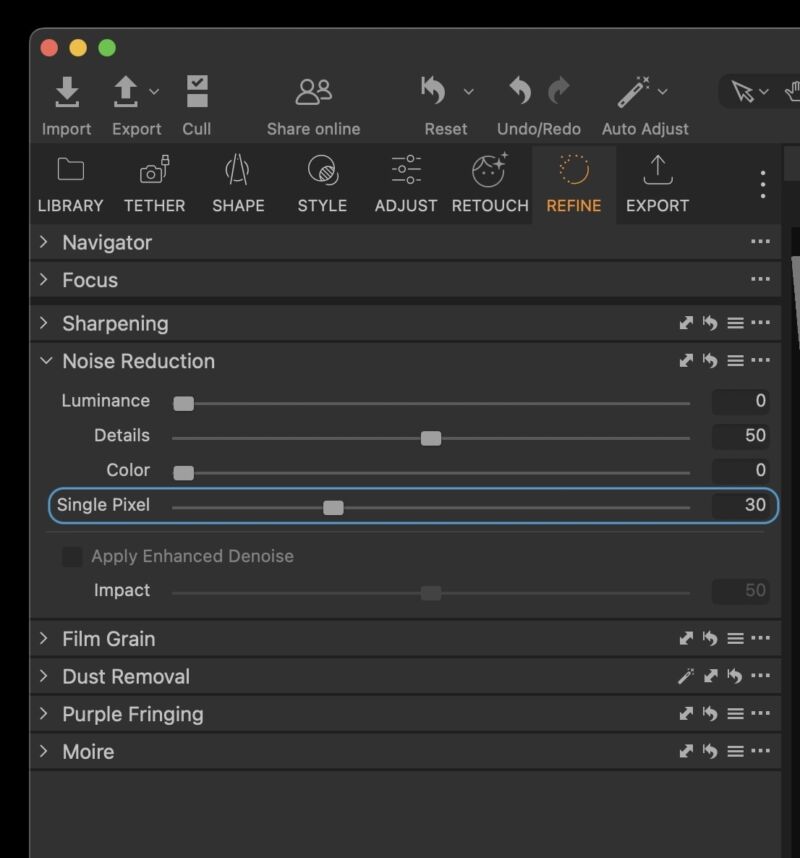
The simple fix is in Capture One - the Single Pixel Slider on the Refine Tab > Noise Reduction, removes them all.
The Single Pixel slider can be used (in the Noise Reduction tool) to eliminate hot-pixels, although it can also affect the rest of the image. The filter will analyse single pixels compared to the surrounding area and correct the errors. Applying adjustments appropriately as the Single Pixel effect is very powerful especially at its maximum.
The Single Pixel slider, like many other adjustments tools, should always be used with caution and in moderation. Remember to try and check the final result before processing.
Check the effect in the Viewer at 100% magnification.

FujiFilm GFX Pixel Mapping
Another step is a pixel mapping in the Fuji Camera that maps the “hot” pixels and calibrates them out.
FujiFilm GFX cameras have a process called Pixel Mapping. It "maps' the pixels with issues and usually cleverly rectifies them so that they do not appear anymore. However depending on your camera and your environment, they may re-appear, but probably in different positions on the sensor.
Here is how to do a pixel mapping on a FujiFilm GFX camera:
- Be sure the battery is fully charged before beginning pixel mapping.
- Pixel mapping is not available when the camera temperature is elevated.
- Processing may take a few seconds.
1. Take a test shot with the lens cap on, at ISO 3200 and shutter speed 1/125. Any aperture/auto is fine. This will show the hot pixels clearly.
2. Run the in-camera pixel mapping:
- To display image quality settings, press MENU/OK in the shooting display and select the I.Q. (IMAGE QUALITY SETTING) tab
- Select > PIXEL MAPPING (found on the last or second-last page) and press MENU/OK to perform pixel mapping.
3. Take another test shot as before, lens cap on, ISO 3200, 1/125
4. Compare the before/after results
If the coloured pixels remain, your camera may need to be serviced.

